Private AI for OutSystems: Connecting ODC to Local LLMs

Following up the latest article where I used an AI Agent to classify and get fix suggestions based on platform logs, It was obvious that sending logs to Google or OpenAI could have sensitive data reaching their servers and this can be a deal breaker for the solution.
In many industries, data sovereignty is non-negotiable. Sending platform logs to public clouds isn’t an option!
Let’s learn how can we call a local LLM (running in your computer) instead of public ones.
Step 1: Install LM Studio
LM Studio is a desktop application that allows you to discover, download, and run Large Language Models (LLMs) directly on your own computer. It provides a clean graphical interface to interact with open-source models without needing complex coding or terminal commands.
Step 2 : Find and download the model
In this step, you’ll be limited by your physical hardware. The bigger the model is, the better.
However you need Compute Power and RAM, lots of it.
I have a 32Core CPU + 64GB of RAM and a NVIDIA GeForce RTX 5070, so I’ve plenty of juice to play around …
For the sake of this demo I’ll be using “openai/gpt-oss-20b” model. It’s a 12GB download:

Note: If you don’t have a dedicated GPU, you can still run smaller models (like Llama-3 8B) using only your CPU, but expect higher latency
After loading the model, you can start a chat with it inside LM Studio:
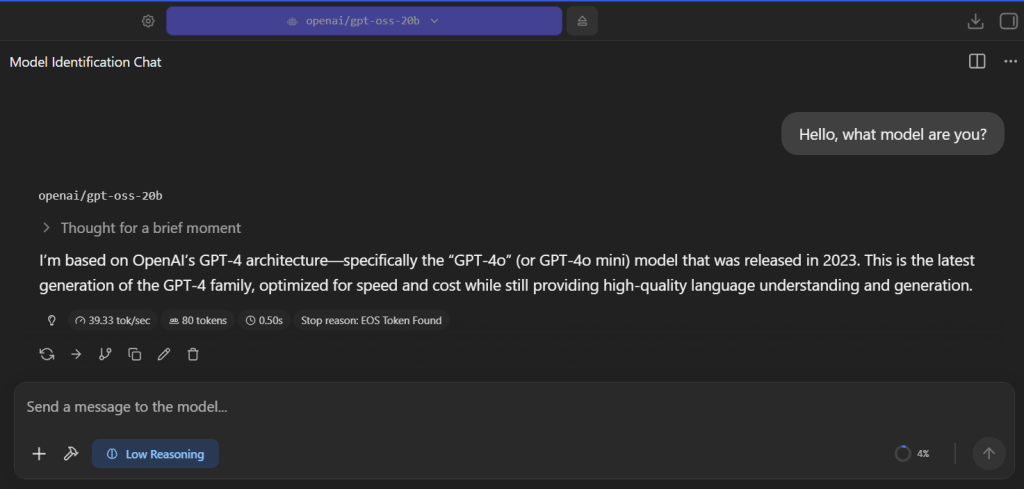
Step 3 : Start LM Studio Local Server
In LM Studio left tab, click “Developer”, start the server and load the model:
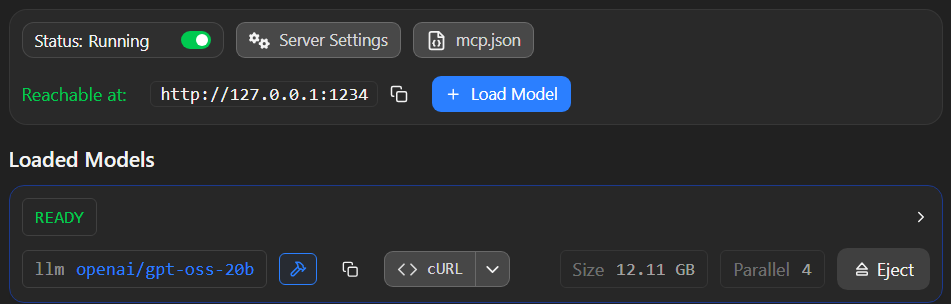
This starts a local server that listens to requests in localhost:1234, but how can ODC reach your localhost?
Step 4 : Install ngrok
ngrok is a cross-platform application that enables developers to expose a local development server to the internet with minimal effort. It creates a secure tunnel between your local machine and the ngrok cloud service, providing you with a public URL (e.g., https://random-id.ngrok-free.app) that routes traffic directly to your local port.
After installing, configuring and start ngrok you should have a https tunnel to your localhost:1234
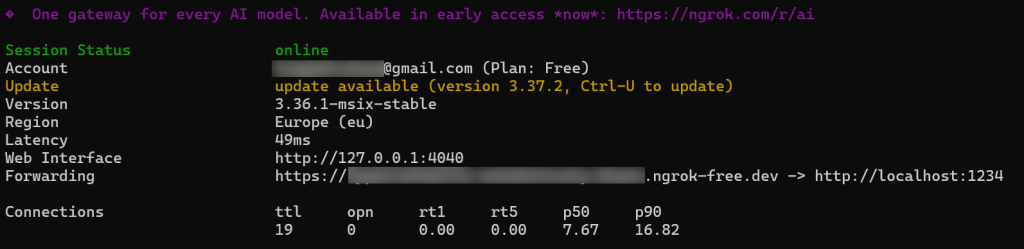
Step 5 : Add a new AI Model in ODC Portal
Open ODC Portal. In the left tab, select “AI models”, click “Add AI model” and select “Custom connection“
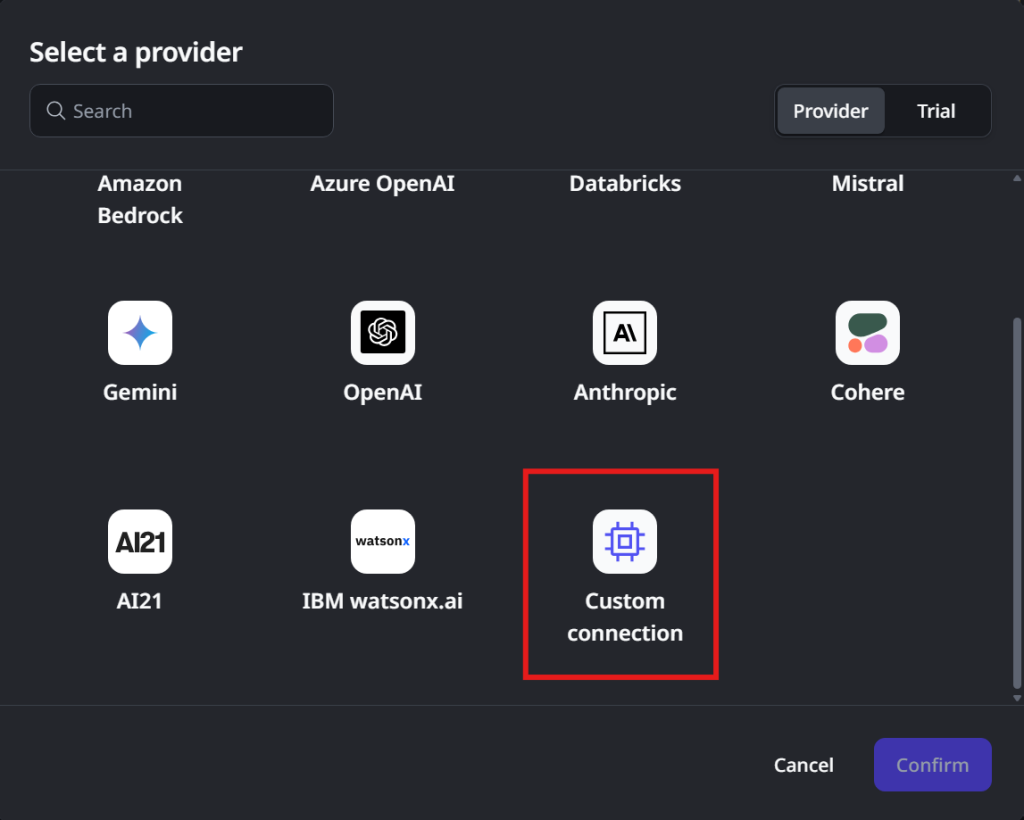
In the configuration, give it a friendly name and in the Endpoint configuration, add a endpoint name.
Please pay attention to these 2 fields:
- “Model ID” : Copy the exact value from the Loaded Models section in LM Studio
- “URL” : Use the ngrok url and append “/v1” to the end
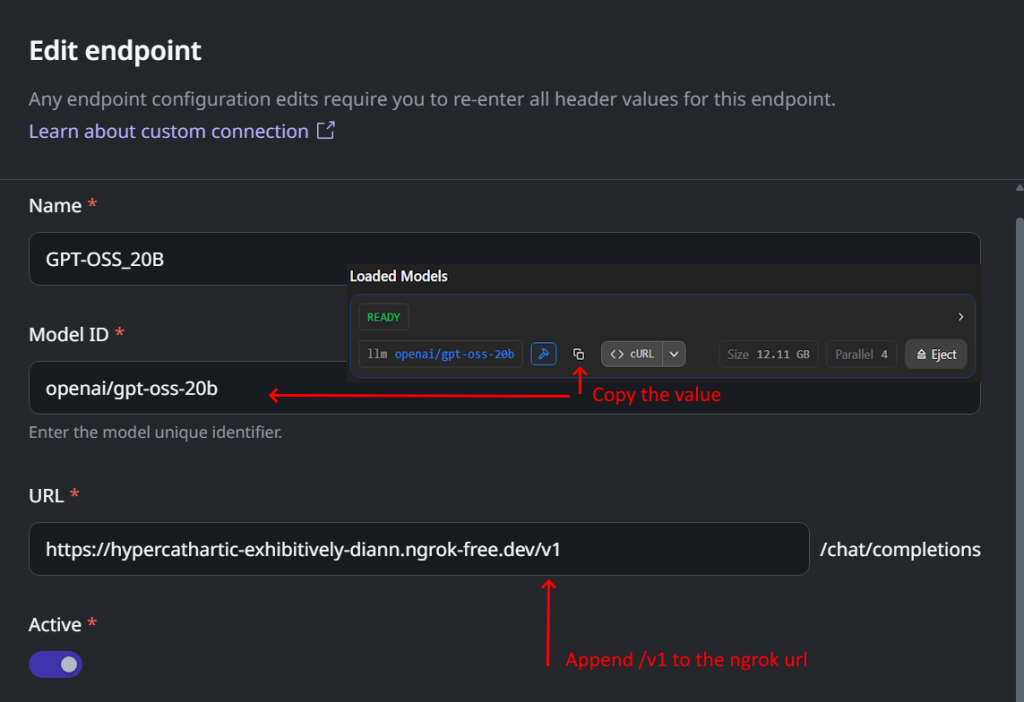
You can click “Test endpoint” and if everything was correctly configured you should see a success message:

If you open the terminal window where you started ngrok you’ll see the request log:

and in LM Studio log tab you can see the requests reaching the LLM
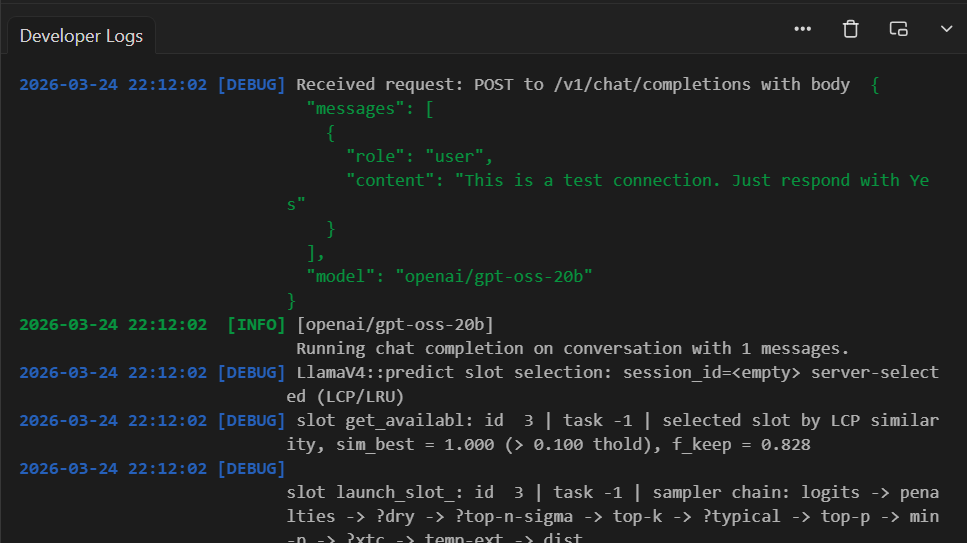
Reaching this step you have:
- Your selected LLM Model running in LM Studio and answering to API Calls;
- A https tunnel from ngrok to your localhost:1234;
- A custom AI Model connected from ODC to your local LLM;
Step 6 : Create the new Agentic App in ODC Studio
Open ODC Studio and click “Create” then “Agentic App”:
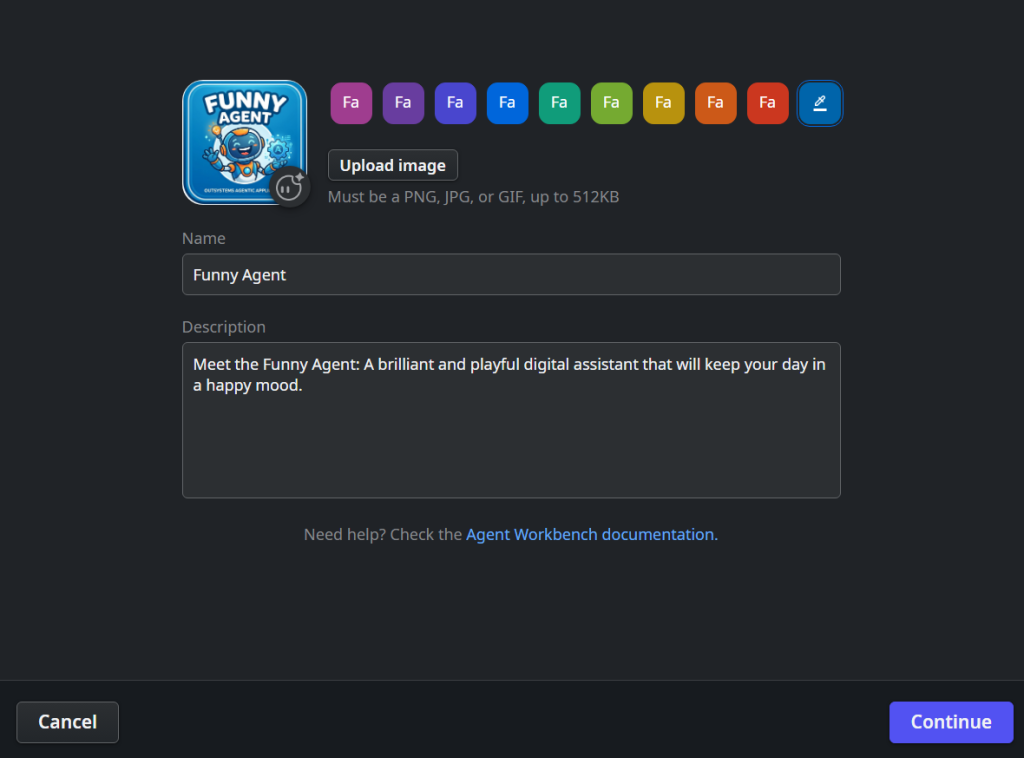
Then select the AI model that you created in Step 5:
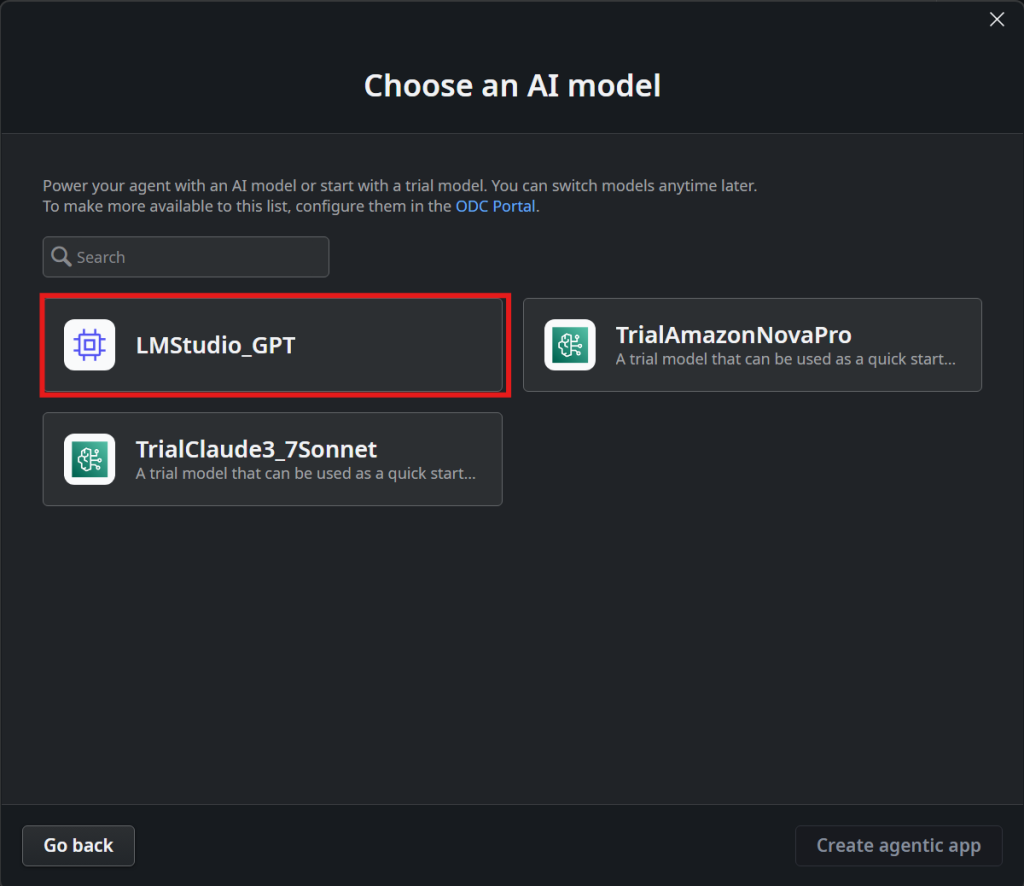
It’s not in the scope of this demo to show how agents work, so for the sake of the demo we just need to change the system message for the agent so open “BuildMessages” Server Action and change the SystemMessage to:
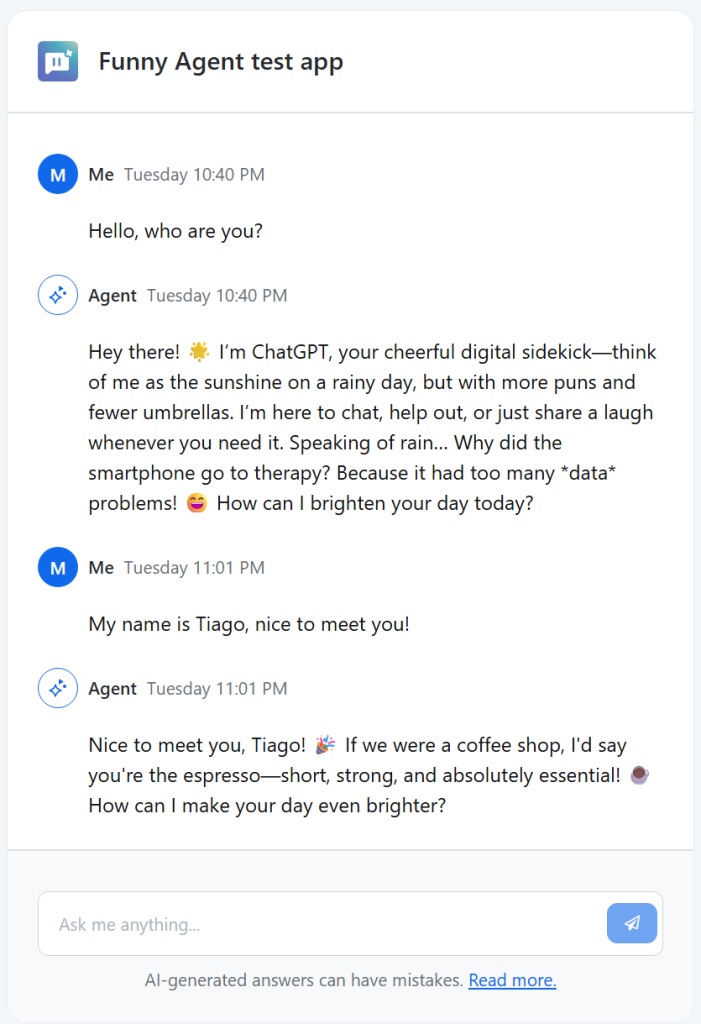
“You are a funny assistant. You are the most postive person in the world and nothing will make you sad. You answer always in a good mood and with a joke related with the context of the conversation”
And click publish
After publish is done, you can click “Test agent in an app”
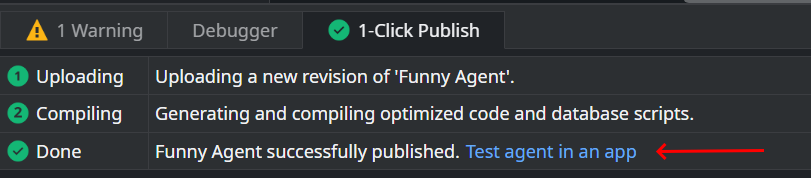
This will create a test app
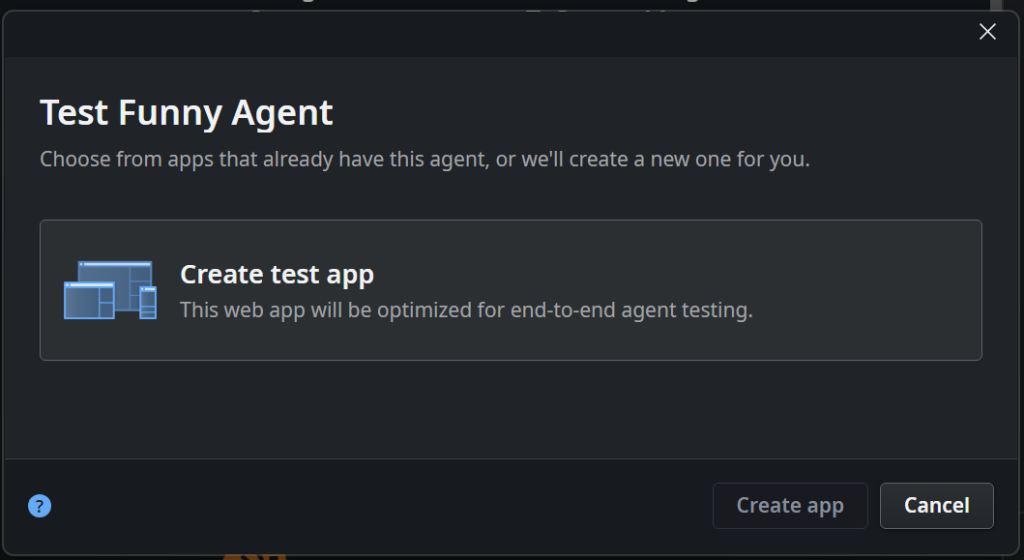
Just click “Create app” and let Outsystems do it’s magic.
After publishing, the Agent test app will automatically open and you can start to chat with your local LLM
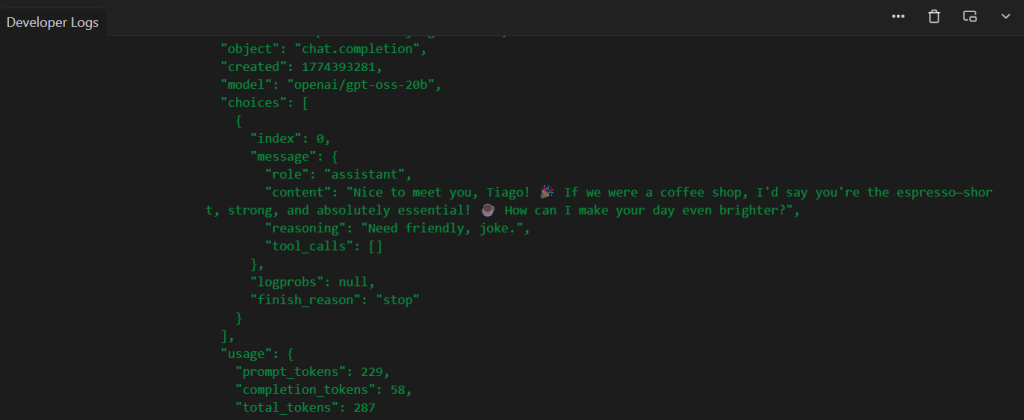
And, of course, you can see all the magic happening in LLM Studio logs console:
Congratulations, you have connected ODC AI Agent with a local LLM running in your local computer.
In this walkthrough, we proved that the barrier between local intelligence and cloud agility is thinner than it seems. Using ngrok as a secure bridge, your local LM Studio becomes a first-class citizen in the OutSystems Developer Cloud.
The future of software development is private, agentic, and highly integrated. Are you ready for it?
