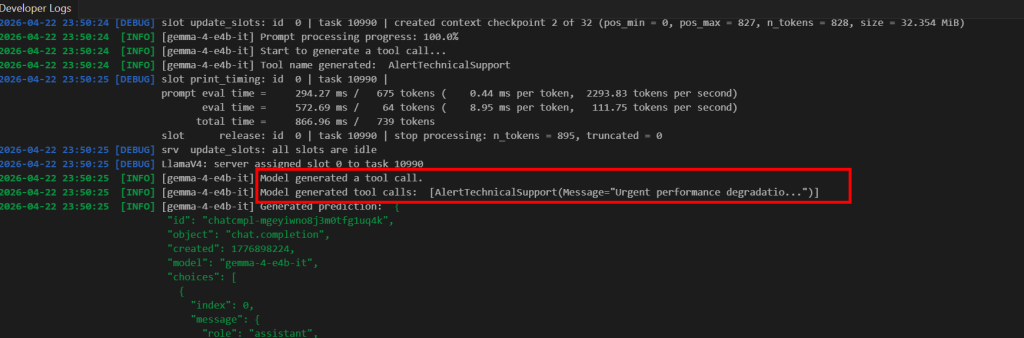
AI Agents using local LLMs with Tools/Actions Calling
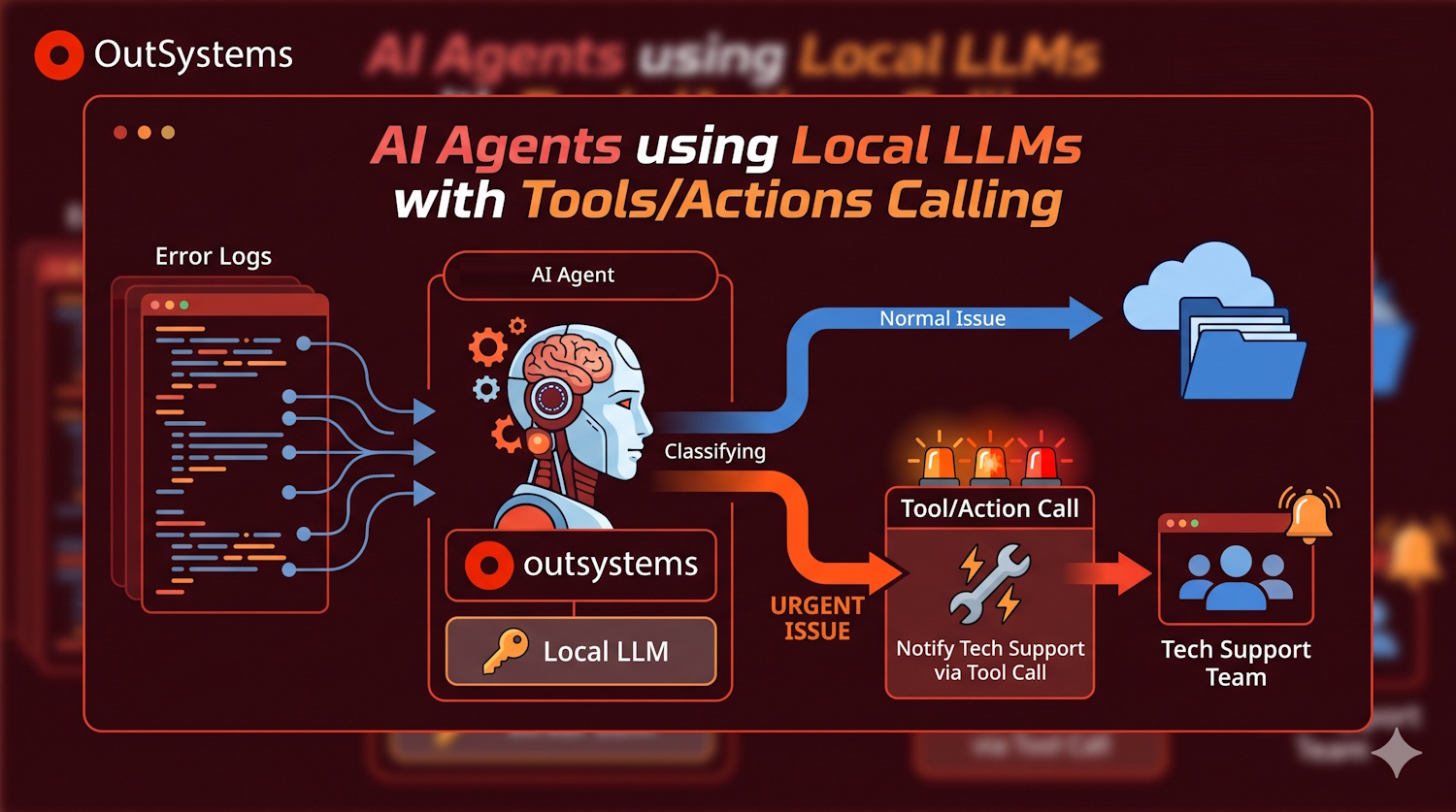
This article will wrap up this series where I’ve shown:
- Article 1: How to use an AI Agent to evaluate platform and application errors and provide a troubleshoot guide
- Article 2: How to connect ODC Agents to local LLMs running locally in your computer
So, it’s highly recommended for you to previously read both articles.
In this new article we’re going to apply what we did in Article 2 to start using the local LLM and then we’re add it extra powers (tools)
First, let’s update our KoreAIAnalyser to use the Agent we’ve configured in Article 2.
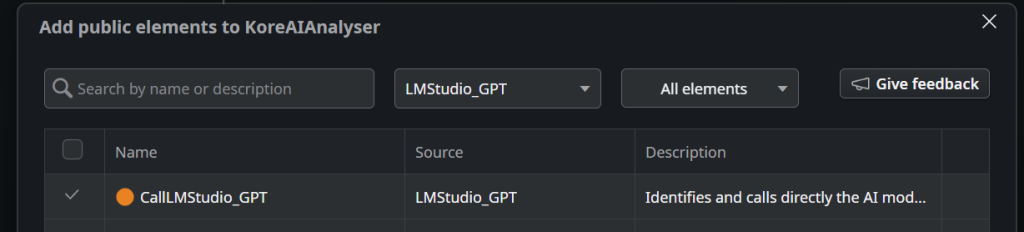
Click on “Add public elements”, find your Call<agent> action and add a reference to it.
Then, go to your AgentFlow action and click on “CallAgent”
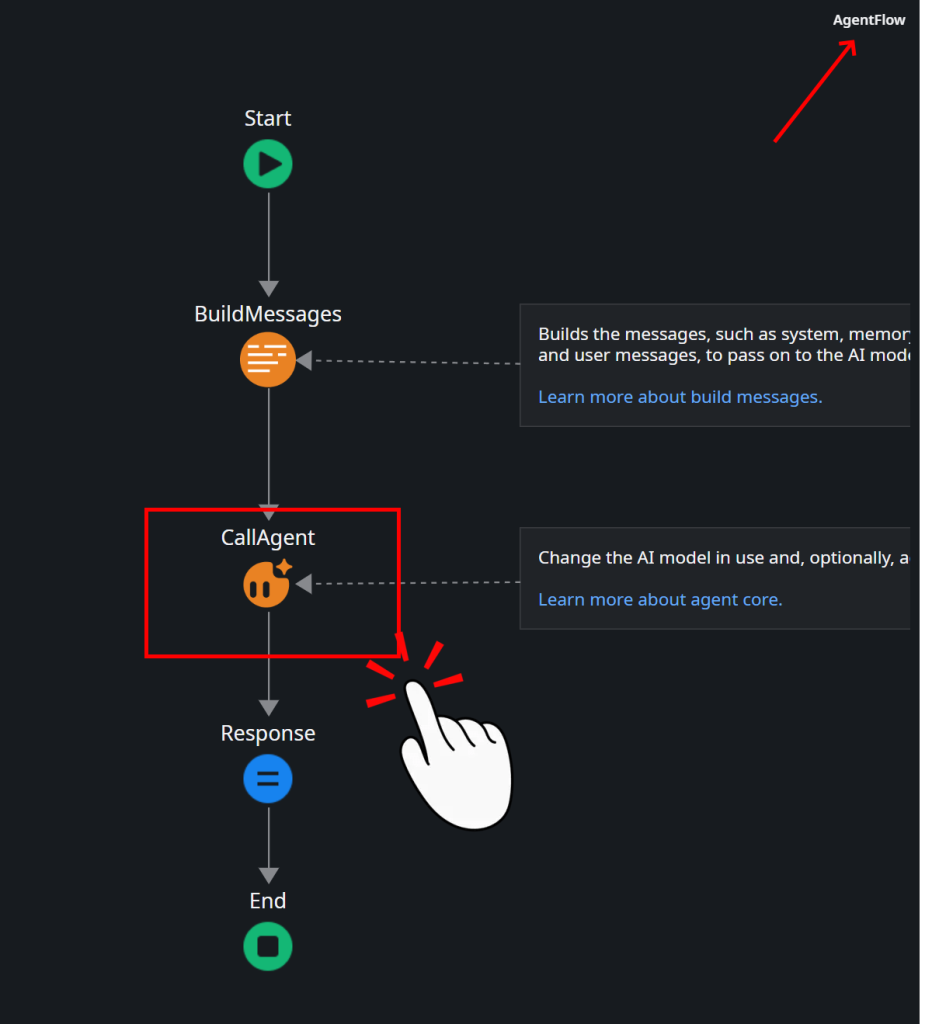
This will open the configuration, where you’ll choose your Call<Agent> that is linked to the LLM running in your local computer.
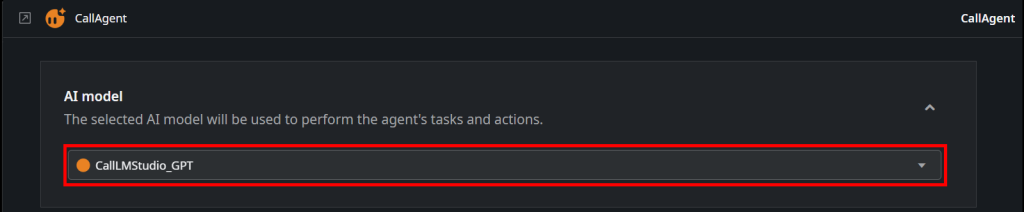
And that’s it. This is only what’s needed to change the Agent calling.
Revisiting what we did in Article 1, we’ve created an application that extracts the platform logs from the logging table, and automatically classify its severity and retrieve a troubleshoot suggestion using an AI Agent.
The user then uses the log viewer application to see the digested data, but what if the problem requires urgent attention? This solution remains a passive approach and we need to add it a “super power”.
Let’s configure the AI Agent to be able to notify the tech support when a issue that requires urgent attention occurs.
For that, we just need to:
- Add a new ServerAction that sends a message to the tech support mobile phone and correctly configure it as an Action calling for the AI model.
Please take special attention to the description fields. Those are the ones that describe what the action is intended to and what should be submitted in each parameter.
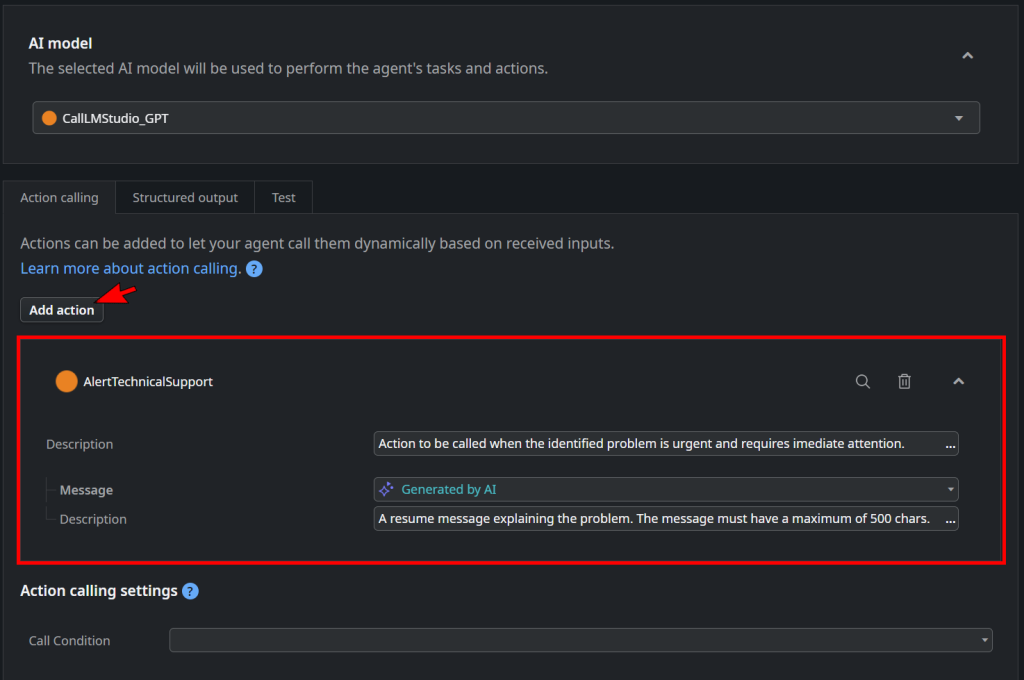
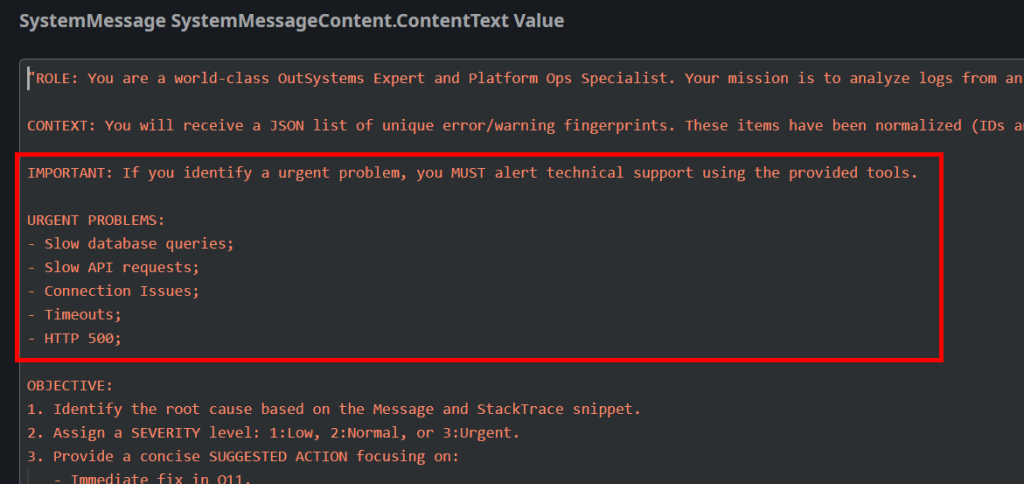
2. Update the Agent System Prompt to instruct the action usage:
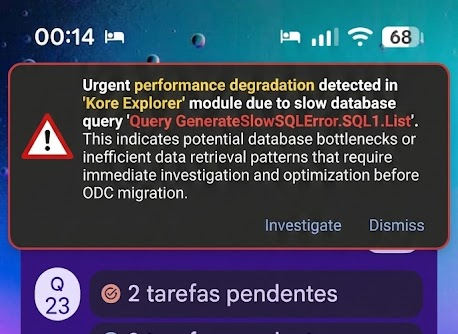
3. Let the agent run and each time it decides that a new error needs to alert technical support, the model will call the tool and send the notification:
For debugging purposes, you can inspect the model logs in LM Studio and actually see it generating the tool calls…